Epson Event Manager Network Scan Setup for Wireless Scanners
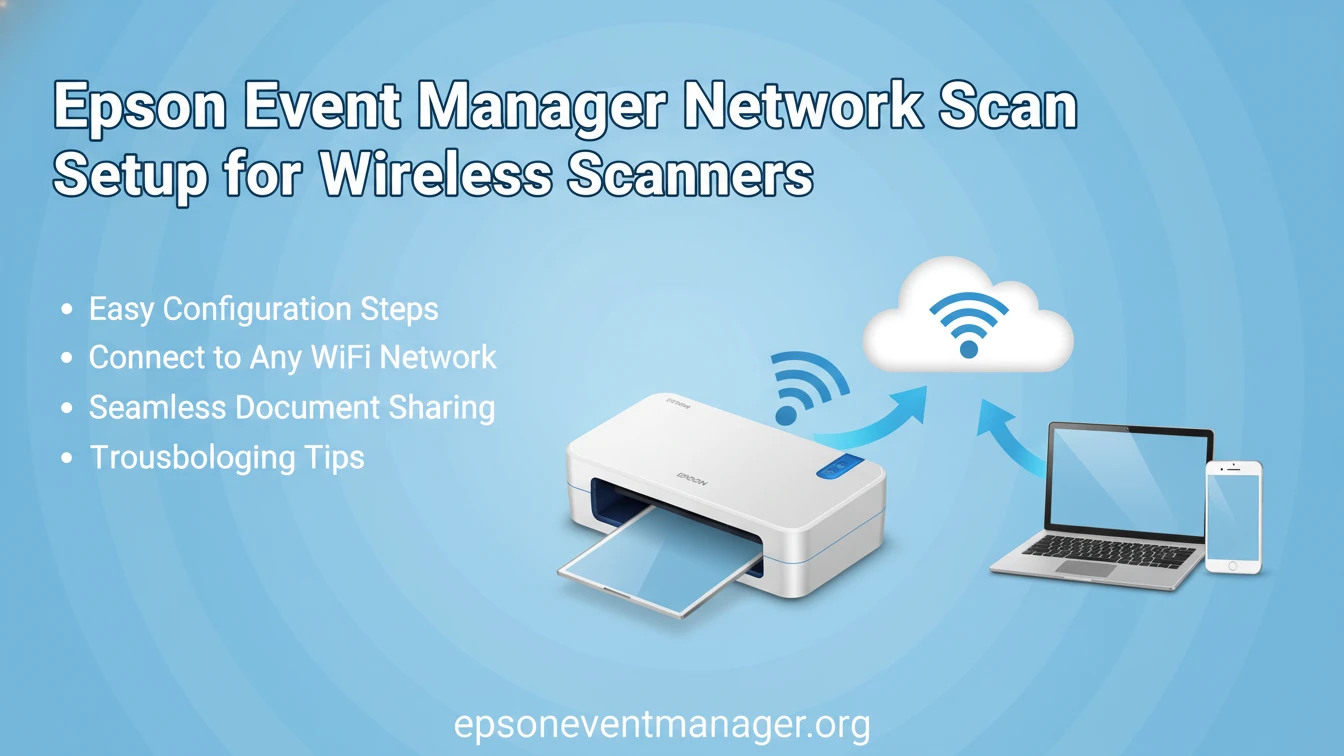
Wireless Epson scanners are designed to simplify everyday scanning. They remove the need for USB cables and allow multiple computers to access the same device over a network. When everything works as expected, scanning feels effortless. When it does not, users often face silent failures where the scanner appears connected but does nothing when a button is pressed. In most cases, the missing piece is correct network event handling.
Epson Event Manager plays a central role in wireless scanning. It listens for scan requests coming from the scanner across the network and translates those requests into actions on the computer. Without it, network scans remain incomplete, even though the scanner shows as online. Understanding how this process works makes setup easier and prevents common errors.
How Network Scanning Works on Epson Devices
The difference between USB and wireless scanning
USB scanners rely on a direct physical connection. Button presses and scan requests travel instantly through the cable, and the operating system knows exactly where the signal comes from. Wireless scanners work differently. Scan requests are sent as network messages, not direct hardware signals.
Because of this, the computer needs a background service that constantly listens for those messages. Epson Event Manager fills that role. It bridges the scanner and the computer by identifying incoming network scan events and routing them to the correct scanning software.
Why drivers alone are not enough
Drivers allow the operating system to recognize the scanner and communicate with it. They do not decide what happens when a scan button is pressed. On wireless models, this gap becomes more visible. Scanning from the computer screen may work, while scanning from the device fails.
Event Manager adds logic that drivers do not include. It ensures that scan requests coming over Wi Fi are received, interpreted, and executed correctly.
Preparing Your Network for Wireless Scanning
Ensuring the scanner and computer are on the same network
Wireless scanning requires both devices to be on the same local network. Even small differences, such as one device using a guest network, can block scan events. Before adjusting software, it is important to confirm that the scanner and computer share the same router and subnet.
Stable connections matter more than speed. A reliable network reduces dropped scan requests and improves responsiveness when buttons are pressed.
Assigning a consistent IP address
Some networks assign new IP addresses each time a device reconnects. When this happens, previously saved scanner profiles may no longer match the device location. Assigning a reserved IP address to the scanner helps maintain consistent communication.
This step is especially useful in offices where scanners are shared across several computers.
Installing Epson Event Manager for Network Scanning
Correct installation order
For wireless scanning, installation order matters. Epson Event Manager should be installed after the scanner is added to the system but before advanced scanning features are configured. This allows the software to detect the scanner properly and register network events.
Installing scanning software alone does not activate button-based network scans. Event handling must be present for the system to respond.
Granting required permissions
On modern operating systems, background services require explicit permission. If Epson Event Manager cannot run in the background or access the network, scan requests will fail silently.
Permissions should be reviewed after installation and again after major system updates, as updates can reset background access rules.
Configuring Network Scan Profiles
Selecting destinations for wireless scans
Network scans often need clear destinations. Files may be sent to a specific folder, saved as PDFs, or attached to emails. Epson Event Manager allows these destinations to be defined in advance.
Without proper configuration, scans may start but never complete, leaving users unsure where the file went.
Managing multiple computers on the same scanner
In shared environments, one scanner may serve several computers. Event Manager lets each system define its own response to scan events. This prevents conflicts where a scan request is picked up by the wrong computer.
Careful configuration avoids confusion and improves reliability in shared offices.
Common Wireless Scan Problems and Their Causes
Scanner appears online but buttons do nothing
This is one of the most common complaints. The scanner connects to the network successfully, but pressing a button produces no result. In most cases, Epson Event Manager is not running or cannot listen for network events.
Restarting the service or reinstalling the software often restores full function.
Scans work from the computer but not from the scanner
This behavior points directly to event handling issues. The scanning application itself is functional, but button-triggered actions are not reaching the system. Network scanning depends on Event Manager to translate those button presses into software actions.
Delays or missed scan requests
Unstable Wi Fi, firewall rules, or background process restrictions can cause delayed responses. Wireless scans rely on uninterrupted communication. Even brief network interruptions can prevent scan events from reaching the computer.
Security Considerations for Network Scanning
Wireless scanning raises understandable concerns about data exposure. Epson Event Manager operates locally and does not transmit scanned data outside the network. It only handles event routing and application launching.
Keeping software up to date and limiting network access to trusted devices maintains security without sacrificing convenience.
When to Reconfigure or Reset Network Scanning
Changes to the network environment can disrupt scanning. Router replacements, password changes, or operating system upgrades may require reconfiguration.
Revisiting Event Manager settings after these changes prevents long-term issues and restores predictable behavior.
Conclusion
Epson Event Manager is essential for reliable wireless scanning. It connects network-based scan requests to real actions on the computer and ensures that button presses work as intended. Without proper setup, wireless scanners appear unreliable even though the hardware is functioning correctly.
By preparing the network, installing Event Manager correctly, and configuring scan profiles carefully, users can achieve stable and efficient network scanning. Wireless Epson scanners perform best when event handling is treated as a core requirement, not an optional add-on.