How to Scan to PDF and Email Using Epson Event Manager
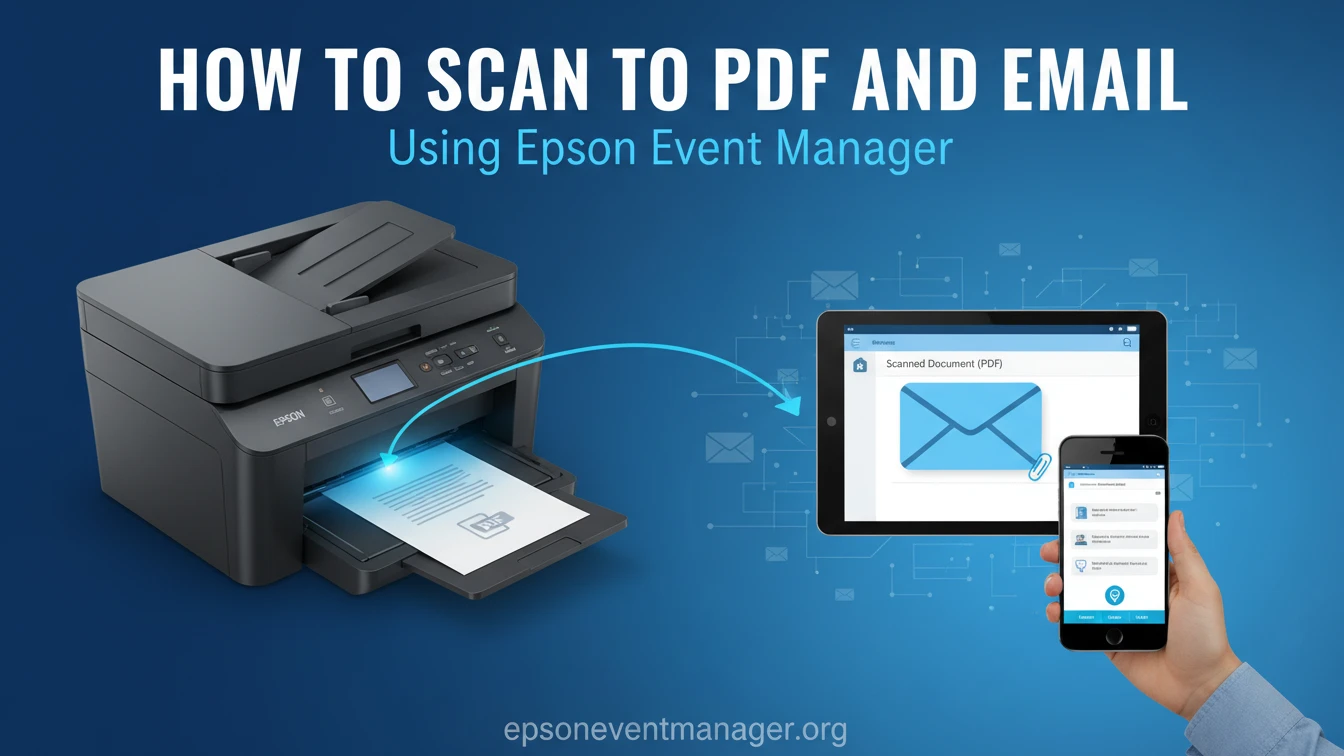
Scanning documents to PDF and sending them by email are everyday tasks in both home and office environments. Epson scanners are built to perform these actions quickly, yet many users end up repeating the same manual steps every time they scan. This usually happens because the scanner buttons are not connected to the correct workflow.
Epson Event Manager is the component that bridges this gap. It links scanner buttons to scanning software, file formats, and destinations, allowing documents to be scanned and prepared for email with minimal effort.
How Scan to PDF Works Behind the Scenes
A scan to PDF involves several steps that are often hidden from the user. The scanner captures the image, converts it into a document format, applies resolution and page settings, and saves the file.
Epson Event Manager controls how this process begins. When a scanner button is pressed, the event manager listens for that action and launches the correct scan profile automatically. Without this step, the system recognizes the scanner but does not know how to process the request.
This explains why scanning works from the computer screen but not from the device itself when event handling is missing.
Using Scanner Buttons for PDF Creation
Epson scanners include physical buttons for common tasks. These buttons are designed to reduce the need for manual setup. Event Manager allows each button to be assigned a scan profile that defines file type, quality, and destination.
Once configured, pressing the Scan or PDF button creates a PDF instantly using predefined settings. The user does not need to open scanning software or choose options each time.
When button actions fail, it is usually due to scanner event handling not being active, not a hardware problem.
Sending Scans Directly by Email
Email scanning works in a similar way. Epson Event Manager triggers the scan, converts the file to PDF, and hands it to the default email application or selected mail client.
This setup is especially useful in offices where documents are shared immediately after scanning. Instead of saving and attaching files manually, the scan is ready for sending as soon as it is created.
If this workflow stops working, the cause is often related to scan button workflow issues rather than email configuration.
Creating Separate Profiles for PDF and Email
Scan profiles are central to reliable scanning. A profile stores scan quality, file format, and destination rules.
For example, PDF scans used for records can be saved at higher quality, while email scans can use smaller file sizes. Event Manager remembers these profiles and applies them automatically.
Using separate profiles improves consistency and prevents accidental changes to scan settings.
Fixing Problems with PDF or Email Scans
When scan to PDF or email stops working, users often assume the scanner is faulty. In most cases, the issue is software-related.
Common causes include disabled background services, missing permissions, or damaged scan profiles. Restarting Event Manager or reassigning button profiles often resolves the issue.
More persistent problems are usually covered under email scanning setup problems, where event handling and permissions are the root cause.
Wireless Scanners and Network Scanning
Wireless Epson scanners depend heavily on Event Manager. Network scans must be routed correctly through the system before scanning software can respond.
If Event Manager is not running, wireless scanners may appear connected but fail to complete tasks. With event handling active, wireless and USB scanners behave the same way.
This consistency is essential in shared and office environments.
Why Background Automation Matters
Event Manager runs in the background so it can respond instantly to scanner events. It does not scan files itself or transmit data externally. It waits until a button is pressed and then triggers the correct action.
This background scan automation is the reason scanner buttons feel immediate when everything is working properly.
Disabling this process removes automation and forces users back into manual scanning.
When Event Manager Is Still Required
Some users assume modern operating systems handle scanning workflows automatically. While basic scanning may work, button-based PDF and email workflows do not function correctly without event handling.
For scanners designed around physical controls, Epson Event Manager remains a required component for reliable operation.
Long-Term Benefits of Proper Setup
Users who configure scan to PDF and email through Event Manager notice fewer errors, faster scanning, and more predictable results. Over time, this saves effort and reduces frustration.
What feels like a small setup task becomes a major workflow improvement.
Conclusion
Scanning to PDF and sending documents by email are tasks Epson scanners are designed to perform efficiently. Epson Event Manager is the software that makes these tasks simple, consistent, and repeatable.
By assigning scan profiles to scanner buttons, users can complete complex actions with a single press. For both home and office use, Event Manager transforms scanning from a manual process into a reliable workflow on Windows and Mac.